Managing Report Definitions
 Use the Manage button on the Admin menu to see a list of the configured report definitions in your system and access options to add, edit or view, or delete them. The standard report types are available by default, but you can add a configured report definition to further customize a selected report type, and make that customized report type option available in your system. The report definition is saved as part of your workspace when you choose to save the workspace.
FMS report definitions reference the report template files saved on your client computer, therefore the report template files are governed by your operating system security rather than CygNet security. See Security for more information.
See FMS Commands for more information about the reports commands supported by CygNet Measurement.
See Managing Report Template Files for information about the template files referenced from report definitions.
See Using the Reports Control for information about viewing, saving, printing or emailing reports.
Report Definition Properties
The following report definition properties fields appear in the Create New FMS Report Definition and Edit FMS Report Definition dialog boxes.
| Property | Value |
|---|---|
|
Name |
Type in the Name for the new report. |
|
Type |
Click to select the Report type you wish to add from the drop-down menu. Options are as follows.
*Note: Balance and Missing Data report types do not access archived data. Other report types can access archived data that exists within the specified command date range. |
Report Parameters
The following report parameter fields appear in the Create New FMS Report Definition and Edit FMS Report Definition dialog boxes.
| Parameter | Value |
|---|---|
|
Description |
This column lists the Description of each report definition parameter for which you can define values. Report definition parameters are specific to each report type, and appear in the corresponding Report Definition dialog box. |
|
Value |
Click in the Value field to enter the value for the selected report definition parameter. Options are indicated in the selected cell, and may include accessing a browser ..., accessing a drop-down menu, or typing the value directly into the text box. See the corresponding Report Definitions topic for parameter descriptions specific to each of the following report types.
|
Creating a New FMS Report Definition
Click Add to create a new report definition, for each report format you wish to save.
To Create a New Report Definition in FMS Explorer
- On the Admin menu, click Manage to access the FMS Report Definitions dialog box.
|
FMS Report Definitions |
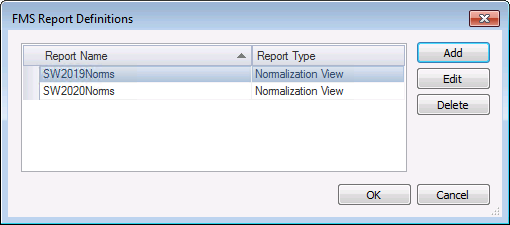
Currently configured report definitions, including the Report Name and the Report Type, appear in the FMS Report Definitions dialog box, listed in alphabetical order.
- Click Add to access the Create New FMS Report Definition dialog box.
|
Create New FMS Report Definition |
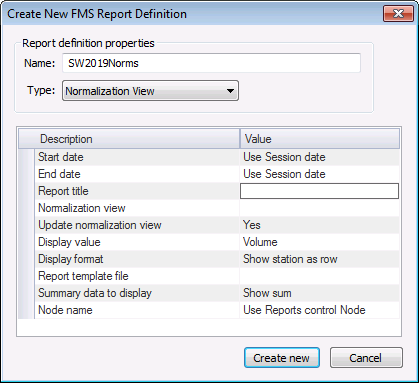
- Define the report definition properties.
- Type a file Name into the text box.
- Select a report Type from the drop-down menu.
- Define the report parameters.
- Enter the parameter values. See the corresponding report definition parameters topic for more information about parameters specific to the selected report type.
- Repeat for each required and each optionally selected parameter desired to describe the report.
- Click Create new. The new report definition will now appear in the list of configured FMS Report Definitions in the dialog box.

Editing an FMS Report Definition
Click Edit to view or edit the elements of a saved report definition.
To Edit an FMS Report Definition
- On the Admin menu, click Manage to access the FMS Report Definitions dialog box.
|
FMS Report Definitions |
Currently configured report definitions, including the Report Name and the Report Type, appear in the FMS Report Definitions dialog box, listed in alphabetical order.
- Either double-click on the desired report name, or click the report name in the report definitions list and then click Edit, to access the Edit FMS Report Definition dialog box. The current definition will be displayed and available for editing.
|
Edit FMS Report Definition |

- Make edits to the desired fields, as in creating a new report definition above.
- Click Save Changes when you are done editing the report definition.
Deleting an FMS Report Definition
Click Delete to remove a saved report definition from your system.
To Delete an FMS Report Definition
- On the Admin menu, click Manage to access the FMS Report Definitions dialog box.
|
FMS Report Definitions |
Currently configured report definitions, including the Report Name and the Report Type, appear in the FMS Report Definitions dialog box, listed in alphabetical order.
- Click a report name from the report definitions list to enable the option to delete it.
- Click Delete. A message will appear, asking you to confirm the deletion of the report definition.
- Click Yes to confirm the deletion.
More:
 Balance Contribution Report Definitions
Balance Details Report Definitions
Balance Overview Report Definitions
Changed Device Data Report Definitions
Changed Station Data Report Definitions
Configuration Report Definitions
Device Total QTR Report Definitions
Gas Analysis Report Definitions
(Gas) Device QTR Report Definitions
Gas Device Raw QTR Report Definitions
Liquid Device QTR Report Definitions
Liquid Device Raw QTR Report Definitions
Missing Data Report Definitions
Missing Data Overview Report Definitions
Normalization View Report Definitions

